

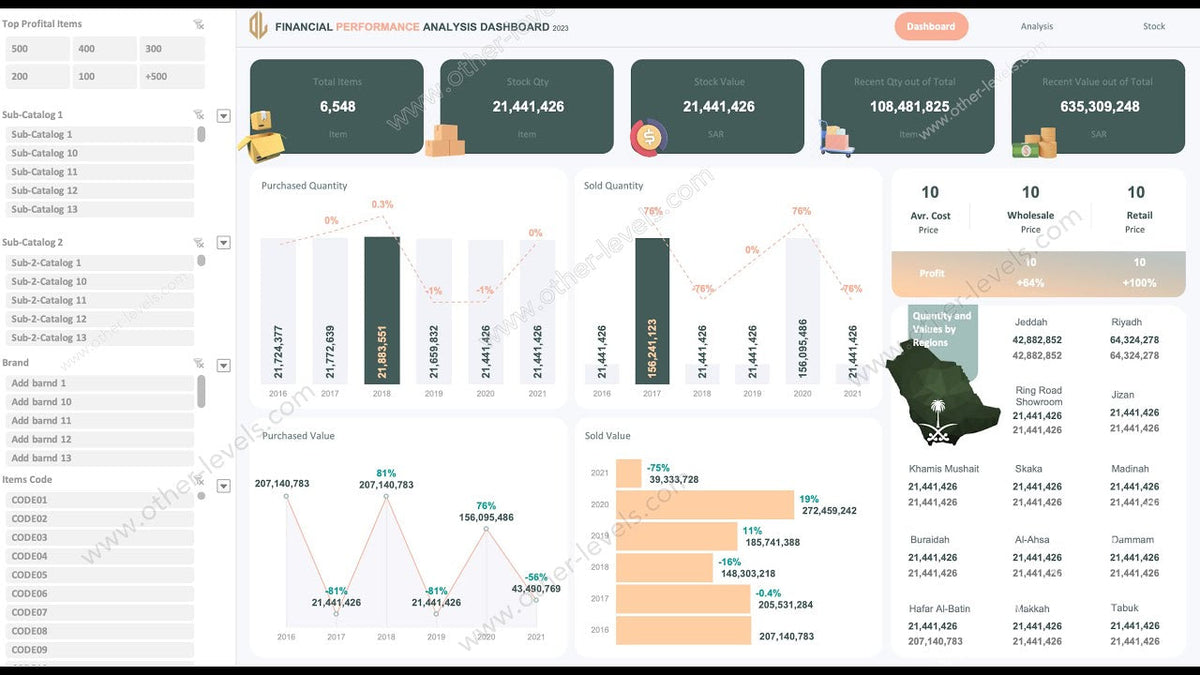
This warehouse dashboard in Excel shows stock levels, sales trends and product profitability together on one page. The Warehouse and Product Sales Management Dashboard by Other Levels is designed for warehouse owners, supply chain analysts and retail managers, and is built to handle catalogues of up to 250,000 products. The tutorial below goes beyond the overview and shows the techniques behind the main dashboard and a product ranking page.
You can use the finished file right away: the warehouse performance analytics and inventory Excel template is the dashboard built in this video.
What the warehouse dashboard in Excel tracks
Stock and value
- Total items, stock quantity and total stock value.
- Recent values and quantities compared with overall inventory.
- Yearly purchased and sold quantities, with difference percentages for value-based decisions.
Filtering and search
- Five smart slicers, covering top profit products, categories, brands and product codes.
- A built-in search bar to jump straight to a specific product.
- Regional stock and sales distribution, shown visually.
Product-level analytics
- Average cost, wholesale price and retail price per product.
- A detailed list view and product ranking.
- Sales and stock metrics segmented by region, time and category.
Techniques from the tutorial: the main inventory dashboard
The video builds the main page in a sequence you can reuse in almost any Excel dashboard:
- Slicer-based profit display. A profit section is inserted and designed with a gradient background.
- Linking PivotTable values to text boxes, so the KPI cards update when slicers change.
- Dynamic product data with slicers: choose a product and the details refresh.
- Map chart for product quantity and value by city. The country symbol's background is removed and formatted, and city names with their quantities and values are displayed on the map.
- Summing branch data with IFERROR, which keeps the totals clean when a branch has no matching records.
- Purchases by year in an area/line chart, with the yearly percentage change shown in custom colours and drop lines added for visual impact.
- Sales values by year in a bar chart, completing the main design.
The map chart is the most distinctive visual here. Microsoft's guide on how to create a map chart in Excel explains the data layout it expects.
Techniques from the tutorial: the product ranking page
The second half builds a product ranking dashboard by retail price:
- A PivotTable is created with price percentage and quantity, formatted, and its layout frozen.
- Products are sorted by retail price from high to low.
- A ranking column is added using a custom shape.
- Pivot headers are replaced with styled rectangles, and 3D icons are placed outside the frame for visual emphasis.
- The Grand Total is moved to the top of the PivotTable, so the headline figure is visible without scrolling.
- Text boxes are linked, slicer connections are updated, and additional PivotTables are built to show different results.
Two of these small steps are worth copying everywhere: freezing the PivotTable layout (so column widths do not jump on refresh) and putting the Grand Total at the top of long lists.
Who this stock and sales dashboard is for
- Warehouse owners who need stock quantity and stock value on one page, not two separate reports.
- Supply chain analysts comparing yearly purchased and sold quantities to spot overbuying or shortages.
- Retail managers who want to see which categories, brands and products earn the most profit, and how retail prices rank across the range.
The common thread is the same: purchases, stock and sales live in one model, so a single slicer click answers questions that would otherwise take several filtered spreadsheets.
Tips for large product catalogues
- Use product codes as the key. Names change and get duplicated; codes do not. Slicers and search both work better on a unique code.
- Keep master data separate from transactions. One table for products (code, category, brand, cost, wholesale and retail price) and another for purchases and sales. Link them by code.
- Standardise city and region names so the map chart can recognise every location.
- Check slicer connections (Slicer → Report Connections) whenever you add a PivotTable, so every panel responds to the same filters.
- Refresh All after each data load so the difference percentages and rankings are current.
For related techniques, see our guides on managing inventory levels dynamically in Excel and building an inventory restock alarm system in Excel. You can also practise with our free Excel practice datasets.
FAQ
How do I create an inventory dashboard in Excel?
Keep a product master table and a purchases and sales table linked by product code, summarise them with PivotTables, and add slicers for category, brand and product. KPI text boxes linked to PivotTable values and a few charts complete the dashboard.
How many products can the warehouse dashboard handle?
It is described as suitable for managing up to 250,000 products.
How are cities shown on the dashboard?
The tutorial uses an Excel map chart to show product quantity and value by city, then adds city names with their figures.
Can I find one product quickly?
Yes. There is a built-in search bar, as well as slicers for top profit products, categories, brands and product codes.
Get the warehouse dashboard template
See stock, purchases and profit in one place: get the warehouse and product sales management dashboard for Excel. For related tools, browse our supply chain and inventory dashboards or the full set of Excel dashboard templates.

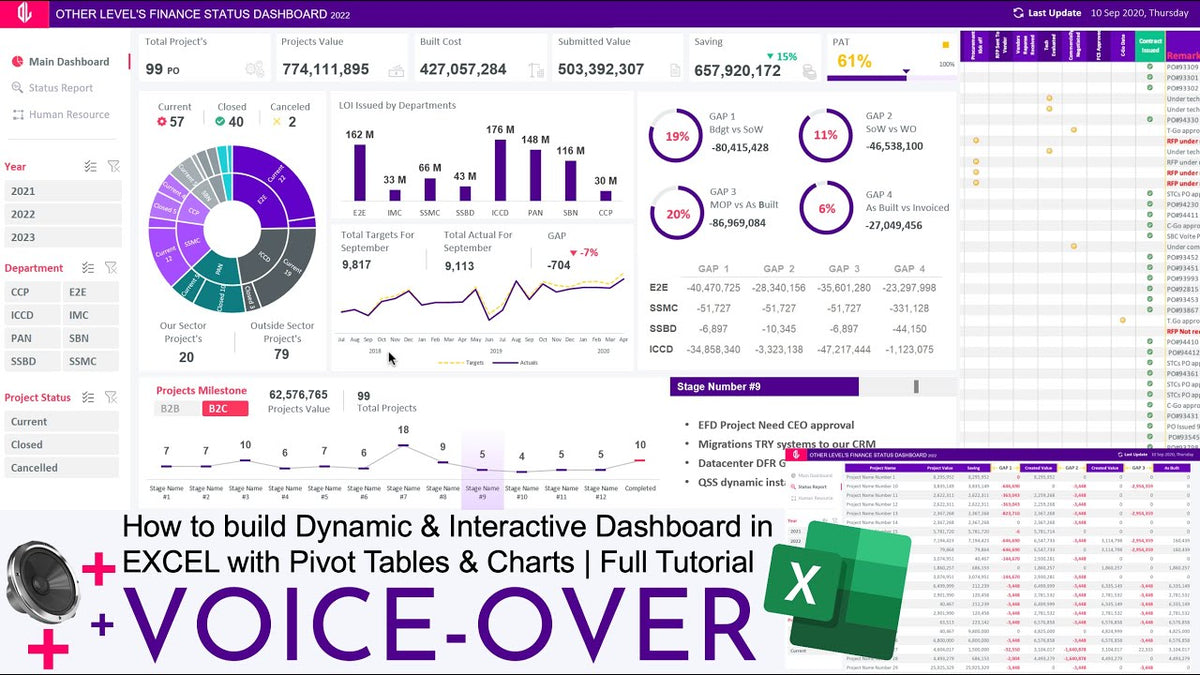
Share:
Supply Chain KPI Dashboard: 15 Metrics to Track + Excel Templates