

This full tutorial shows how to build an interactive Excel dashboard for finance and project milestones without a single line of VBA. It is for professionals and organisations that manage many projects and need project value, budget savings, gaps and milestone status in one place. The voice-over video below covers the whole build, from background design to a scroll-bar milestone tracker.
Prefer to start from the finished file? The Dynamic and Interactive Financial Status and Project Milestone dashboard is the exact template built in this video.
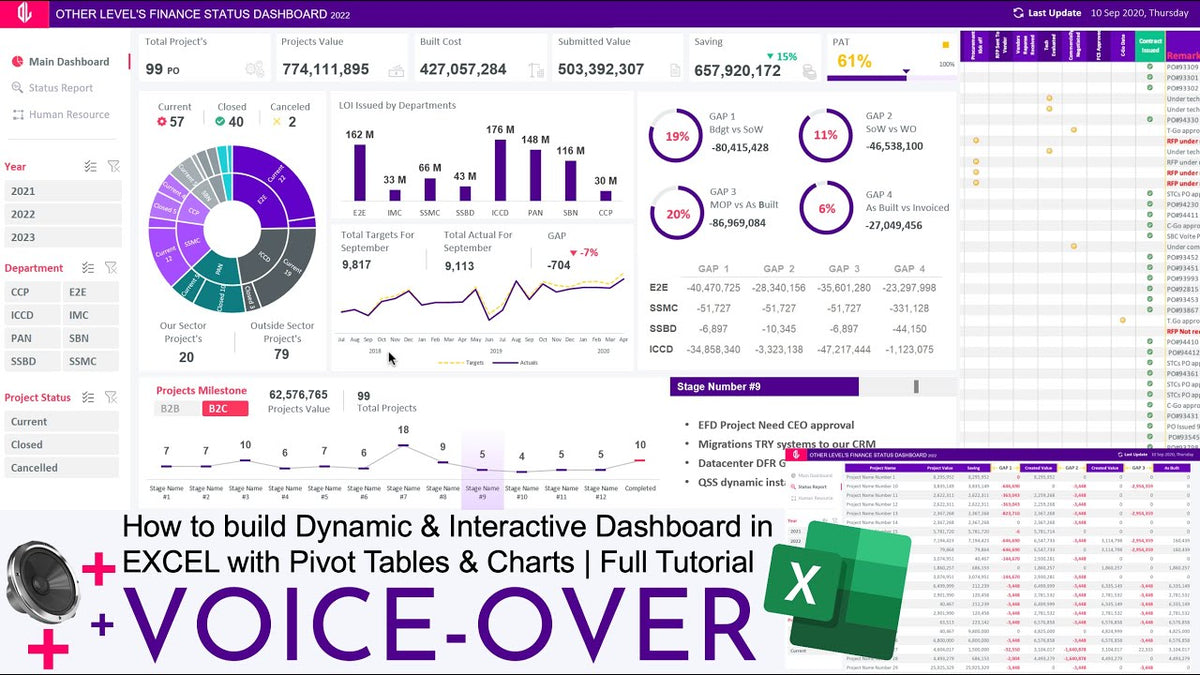
What the finished interactive Excel dashboard shows
- Three slicers: Yearly, Department and Project Status.
- Totals: Project Value, As-Built cost, Submitted Value, Budget Saving and PAT/GAP.
- Project status: current, closed and canceled projects, plus submissions and departmental relationships.
- GAP analysis: Budget vs Scope, Scope vs Work Orders, MOP vs As-Built, and Invoiced vs As-Built.
- A dynamic milestone tracker with a scroll bar and live updates.
- Charts: line, doughnut, sunburst, column and stacked bar.
- A status report built with PivotTables, and an editable blank sheet linked to the theme for your own analysis.
The project finance dashboard build, stage by stage
The tutorial runs about 25 minutes. Here is the path it takes, grouped into stages so you can jump to what you need.
1. Foundation and layout
- Colour codes, font type and Excel compatibility are set up first.
- The data table and PivotTables are prepared.
- The dashboard background is created, then the logo, title and a "last update" field.
- Navigation tabs between dashboards are added and formatted with icons, then connected with hyperlinks.
2. KPI values and indicators
- Data values are linked to text boxes so the cards update automatically.
- A saving percentage is added with visual indicators.
- Conditional formatting based on profit % colours the result.
3. Charts
- A stacked bar chart with KPI colours and overlapping percentage text boxes.
- A sunburst chart by department status, with labels and icons.
- A column chart for project budgets and a line chart for actual vs target.
- A donut chart showing the gap percentage, fed by a PivotTable for project gap.
4. Slicers and interactive titles
- Slicers are designed and styled using hex colour codes so they match the theme.
- Totals and gap values are pulled with VLOOKUP, and a triangle shape acts as a gap indicator.
- Interactive titles are built from a pivot key and linked to the dashboard with VLOOKUP, so headings change with the selection.
5. The scroll-bar milestone tracker
- A stage-wise project line chart is created.
- An Excel scroll bar (a Form Control) drives which projects are displayed, with VLOOKUP returning the filtered data.
- Dynamic shapes represent project stages; they are aligned, grouped and linked, formatted with gradient fonts, and given a legend.
- Finally, the scroll bar is locked so the layout stays stable.
Why build an Excel dashboard without VBA
Every interactive element in this dashboard comes from built-in features: slicers, PivotTables, hyperlinks, a Form Control scroll bar and lookup formulas. That has practical benefits:
- The file can be saved as a normal .xlsx, with no macro security warnings.
- Colleagues can inspect and adjust the logic without reading code.
- It behaves predictably when shared by email or on a network drive.
VLOOKUP does a lot of the work here, from gap values to interactive titles to the scroll-bar rows. Microsoft's VLOOKUP function reference covers the syntax, and our guide to using VLOOKUP like a pro in Excel shows it in dashboard-style examples.
Tips to apply the techniques to your own projects
- Link the scroll bar to a single cell and use that number as the starting row for your lookups. Every row shown is then "start + 0", "start + 1", and so on.
- Set the scroll bar maximum to your project count minus the number of visible rows, so users cannot scroll into blanks.
- Keep gap formulas simple and named. Each of the four gap comparisons is a subtraction; naming the inputs makes them readable.
- Store theme hex codes on a notes sheet so slicers, shapes and charts stay consistent when you extend the file.
- Consider XLOOKUP if everyone uses Microsoft 365. It does what VLOOKUP does here with fewer limitations, but VLOOKUP keeps the file compatible with older versions.
For more on the scroll-bar technique, see how to create scrollable charts with Excel's Form Controls. Want to follow along with the same kind of data? Download the finance and project milestone dashboard dataset, or browse all our free Excel practice datasets.
FAQ
How do I make an interactive dashboard in Excel without VBA?
Summarise your data with PivotTables, add slicers to filter them, link KPI text boxes to cells, and use Form Controls such as a scroll bar with lookup formulas for extra interaction. Hyperlinks can act as navigation tabs between sheets, all without macros.
What is PAT/GAP in this dashboard?
It is one of the headline totals, shown next to project value, As-Built cost, submitted value and budget saving, and supported by four gap comparisons such as Budget vs Scope and Invoiced vs As-Built.
How does the milestone tracker scroll without macros?
It uses an Excel scroll bar Form Control linked to a cell, and VLOOKUP formulas that return the rows for the current scroll position.
Can I add my own analysis to the template?
Yes. The template includes an editable blank sheet connected to the theme, so new analysis matches the rest of the dashboard.
Get the interactive dashboard template
Want the result without the 25-minute build? Get the interactive Excel dashboard for financial status and project milestones and plug in your own projects. For more trackers like it, explore our project management dashboards or the full library of Excel dashboard templates.

Share:
Animated Process Flow Chart in PowerPoint: Present Workflows Clearly
Supply Chain KPI Dashboard: 15 Metrics to Track + Excel Templates