

This Finance Status & Projects Milestone dashboard brings project gap analysis in Excel to one screen: it shows where project money goes, from budget to scope of work to invoicing, and flags the gaps between each stage. It is one of the most successful Excel dashboards on YouTube, with over 5 million views, and this video is Episode 4 of the tutorial series that builds it with PivotTables and charts. It is aimed at project managers, PMOs, financial controllers and department heads.
The complete workbook is available as the Dynamic and Interactive Financial Status and Project Milestone dashboard, ready for your own projects.
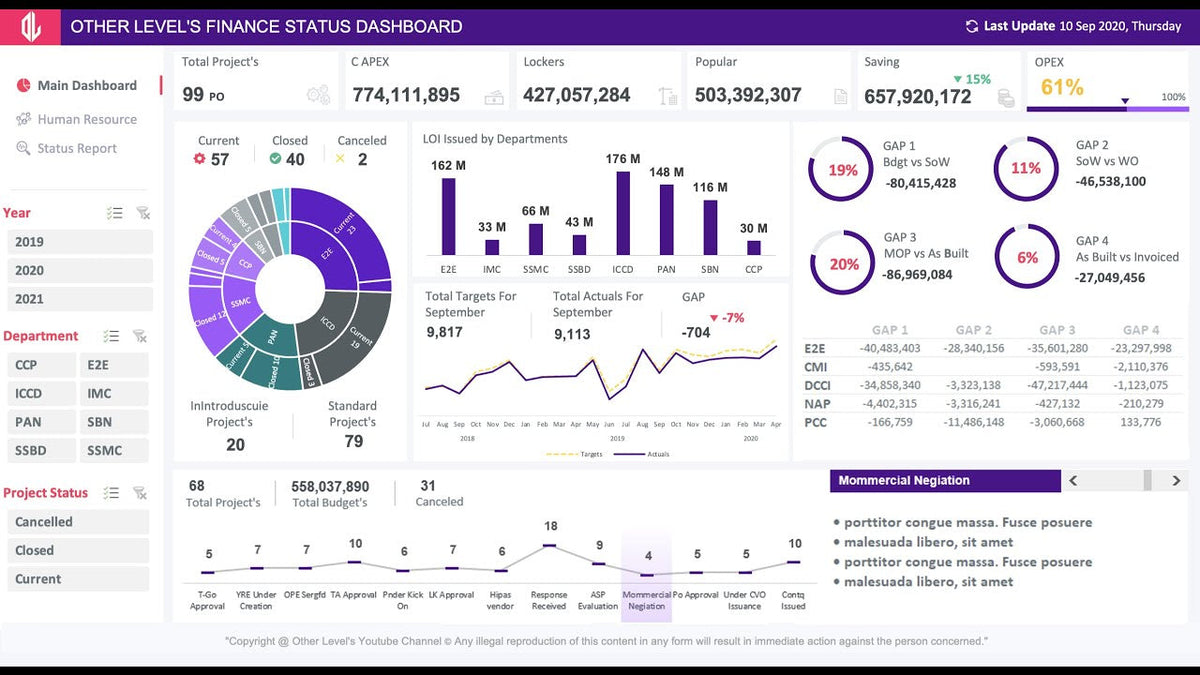
What the main dashboard shows
- Three interactive slicers: Year, Department and Project Status.
- Key financial metrics: Project Value, As-Built Cost, Submitted Value, Budget Savings and PAT/GAP.
- Project monitoring: current, completed and canceled projects.
- Dynamic line chart: the gap between target and actual by month.
- Sunburst chart: project status by department.
- Milestone progress tracker: scroll through milestone stages with dynamic details.
Project gap analysis in Excel: the four GAPs
The most useful idea in this dashboard is its GAP analysis. Instead of one variance number, it measures the difference at each handover point in a project's financial life:
- GAP 1: Budget vs. Scope of Work. Does the planned work fit the approved budget?
- GAP 2: Scope of Work vs. Work Orders. Are the work orders issued in line with the agreed scope?
- GAP 3: MOP vs. As-Built. How does the planned execution compare with what was actually built?
- GAP 4: Invoiced vs. As-Built. Has everything that was built been invoiced?
The total of all GAPs is summarized by department in both a table and a chart. This matters because a single "over budget" figure hides where the problem started. If GAP 1 is small but GAP 4 is large, for example, the planning was fine and the issue sits in billing, so a department head can go straight to the right conversation.
How the budget vs actual dashboard is built with PivotTables
The workbook is organized into clear tabs:
- Data Tables: the raw project and financial records.
- Pivot Formulas: the PivotTables and calculations that feed the visuals.
- Main Dashboard: KPIs, charts and the milestone tracker.
- Status Report: a pivot-based drill-down report.
- Blank Sheet: a ready-to-use sheet with the theme and a hyperlink, for your own additions.
Separating data, calculations and presentation is the habit that makes this dashboard stable. The PivotTables summarize the data by year, department and status, and because the three slicers are connected to them, every KPI and chart answers to the same filters. The Status Report tab offers the same three slicers, so executives can move from the visual summary to a clean pivot-based status summary and filter it the same way.
If you are new to the feature, Microsoft's guide to creating a PivotTable to analyze worksheet data is a good start, and our article the PivotTable explained shows how it powers dashboards like this one.
Why a sunburst and a line chart?
The sunburst chart suits hierarchical data such as department and then status, because it shows both levels in one circle. The line chart for target vs. actual works because a gap is easiest to understand as the distance between two lines over time.
Reading the milestone tracker
The milestone progress tracker lets you scroll through the stages of a project and see the details for each one. Pair it with the Project Status slicer to review only current projects in a weekly meeting, or only completed ones in a close-out review.
Who uses this kind of dashboard
- Project managers and PMOs
- Financial controllers and analysts
- Department heads and strategy teams
- Any organization managing cross-departmental projects
It is especially suited to executive reporting and performance reviews, where people need to see both the progress and the money in one place. For similar tools, browse the project dashboard templates collection.
Tips to apply it to your own projects
- Define each value clearly before you enter data. Agree with finance what counts as Submitted Value, As-Built Cost and Invoiced, or the GAPs will not be comparable across departments.
- Use one status list for current, completed and canceled projects, so the slicer and the sunburst chart stay consistent.
- Enter milestones in order. The milestone tracker is easier to follow when stages always appear in the same sequence.
- Start small. Load one year and one or two departments, check the GAP totals by hand, then add the rest.
To follow the tutorial with the same structure, download the sample file from the Finance Status and Projects Milestone dataset. More data is available in our free Excel practice datasets.
FAQ
How do I do a budget vs actual gap analysis in Excel?
Record the planned and actual values for each project in one table, then subtract one from the other in a PivotTable calculation or a helper column. Summarize the gaps by department and month and chart target against actual so the difference is visible over time.
What does PAT/GAP mean on the dashboard?
It is one of the key financial metrics shown with Project Value, As-Built Cost, Submitted Value and Budget Savings, and it relates to the gap analysis that runs through the whole dashboard.
Which filters control the dashboard?
Three slicers: Year, Department and Project Status. The Status Report tab also offers drill-down with the same three filters.
Is this the whole tutorial?
No. This video is Episode 4 of the series, covering a dynamic, interactive dashboard built with PivotTables and charts.
Get the template
Watch Episode 4, then download the Financial Status and Project Milestone Excel dashboard to run your own gap analysis. More designs are in the Excel dashboard templates collection.

Share:
Dynamic Student Photos in Excel: Top 3 Students on a School Dashboard