

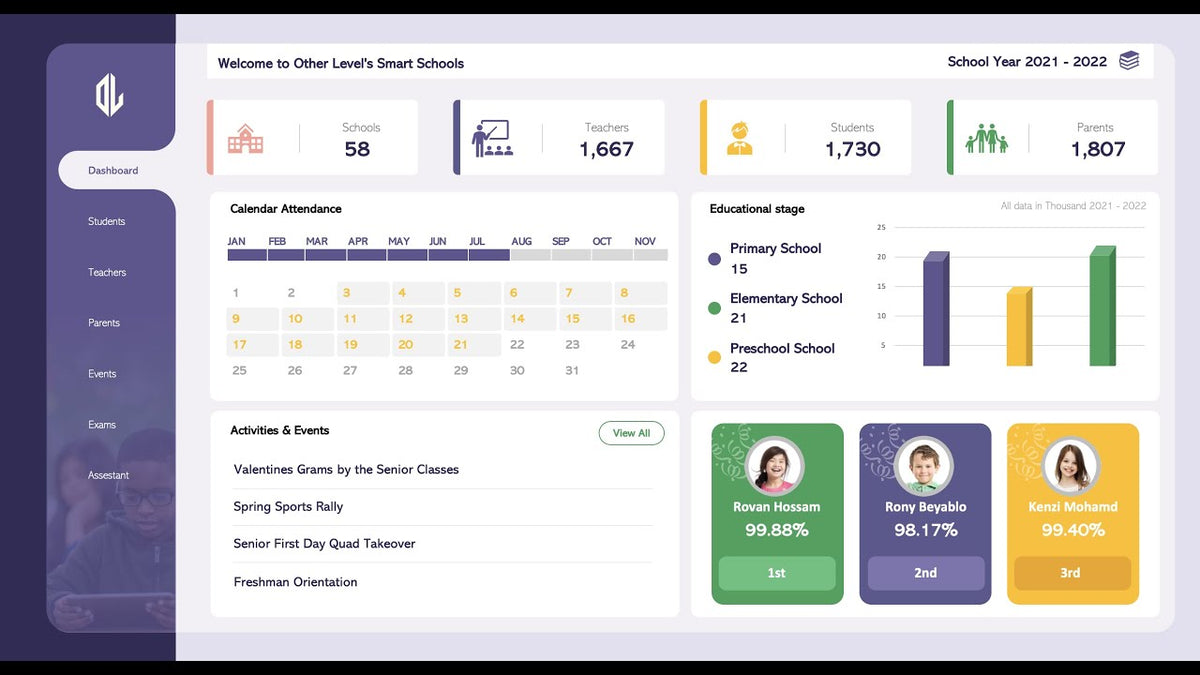
This school dashboard uses dynamic images in Excel: it shows the photos, names and grades of the top 3 students, and the pictures change automatically when you change the slicer filters. It is part 2 of our School Management Dashboard tutorial series and focuses on one feature, configuring student images dynamically. It is aimed at school administrators, coordinators and educators who want reports that people actually look at.
The finished workbook is available as the Excel School Dashboard with changing student photos, so you can load your own students and pictures without building it from scratch.
Why photos make a school dashboard work
A table of student IDs and scores is accurate, but it is easy to ignore. Put a face next to a name and a grade, and the same data becomes something teachers and parents recognize instantly.
That is the idea behind the Dynamic Top 3 Students section. When you change the slicer filters, such as month or year, the dashboard recalculates the top three and updates their photos, names and grades together. The same image-based approach is used in the Teacher Dashboard, which shows teacher photos alongside their subjects and comments.
What else is in the School Management Dashboard
- Dynamic Top 3 Students: photos, names and grades that follow the slicers.
- Teacher Dashboard: teacher photos, subjects and comments.
- Parent and student tracking: organized in pre-built sheets.
- Event management panel: scheduled and past events displayed clearly.
- Educational level breakdown: Preschool, Primary and Elementary.
- Monthly and yearly slicers: filter performance by time.
- Pre-designed sheets for Students, Parents, Exams and Assistants.
Everything runs on PivotTables, slicers and formulas inside Excel, with no coding required.
How dynamic images in Excel work
The video shows the exact setup used in this template. If you want to understand the idea before watching, the general logic behind any changing picture in Excel has three parts.
- Rank the students. A PivotTable filtered by the slicers sorts students by grade, and formulas pick the names in positions 1, 2 and 3.
- Look up the image for each name. Each student's photo is stored in a reference sheet next to their name, and a lookup finds the right one for each of the three positions.
- Display the result on the dashboard. The picture area on the dashboard is linked to the lookup result, so when the ranking changes, the picture follows.
Two common methods for the picture itself
Linked picture with a named range. A named range uses a formula to point at the cell that holds the right photo, and a linked picture on the dashboard displays whatever that range points to. Our guide to using INDIRECT with named ranges in Excel explains the building block, and INDEX and MATCH lookups are a reliable way to find the matching row.
The IMAGE function. In newer versions of Microsoft 365, the IMAGE function places a picture inside a cell from a web address. If your photos are available by URL, a lookup can return the address and IMAGE shows the photo.
Whichever method you choose, the key is the chain: the slicer drives the ranking, the ranking drives the name, and the name drives the picture.
A final design tip: place each photo inside a frame shape of the same size, with the name and grade in text boxes linked to cells. When the ranking changes, the text and the picture change together, and the layout never moves.
Tips for adding your own student photos
- Use the same size and shape for every photo. Crop all images to a square first, or the top 3 section will jump around as students change.
- Match on a unique ID. A typo in a name means a missing photo, so a student ID is safer than the full name.
- Prepare a placeholder image for students without a photo, so the section never shows an empty frame.
- Keep file size in check. Compress pictures (Picture Format > Compress Pictures) when you add many students.
- Respect privacy. Get the school's permission before sharing a workbook that contains student photos, and share it only with people who need it.
- Test every slicer combination. Check each month and year to confirm the top 3 always shows three valid students.
To follow along with the tutorial, download the sample file from the School Management Dashboard dynamic photos dataset. You can also browse all our free Excel practice datasets.
Who this education dashboard is for
- School administrators and coordinators preparing monthly or yearly reports
- Teachers who want to recognize high-performing students
- Coaching centers and institutions that need a simple, scalable way to manage student data
See other school and training layouts in our education dashboard templates collection.
FAQ
How do I make a picture change based on a cell value in Excel?
Store each picture next to its name or ID, use a lookup to find the right one for the selected value, and display it with a linked picture tied to a named range or, in Microsoft 365, the IMAGE function.
Do I need VBA to show dynamic pictures in Excel?
No. This dashboard is built with PivotTables, slicers and formulas and is ready to use without coding. You only need to plug in your own data and photos.
What changes the top 3 students on the dashboard?
The monthly and yearly slicers. When the filtered data changes, the top 3 photos, names and grades update.
Is this the first part of the tutorial series?
No. This is part 2. It concentrates on making the student images change dynamically on an existing school dashboard.
Get the template
Watch the tutorial to see the photo logic in action, then download the School Management Dashboard with dynamic student photos and add your own school's data. For other ready-made layouts, explore the full Excel dashboard templates collection.

Share:
Warehouse and Sales Dashboard in Excel: Map Charts and Ranking