

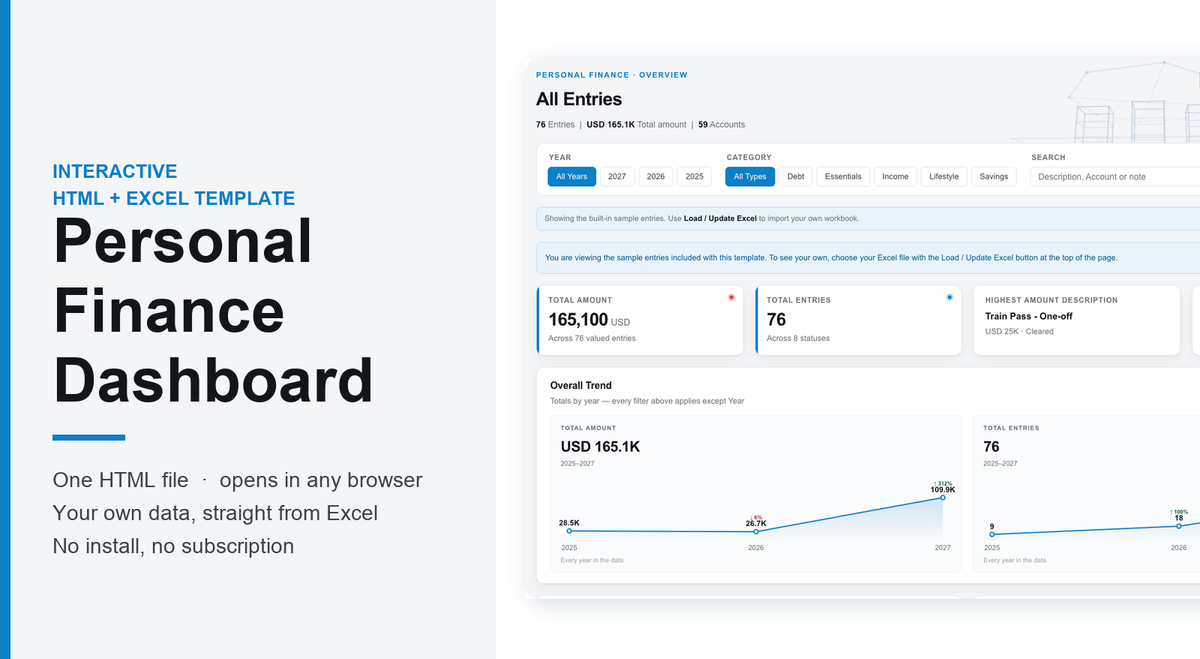
Personal Finance Dashboard – Interactive HTML + Excel Template
Overview
A ready-to-use Personal Finance dashboard that runs directly in your web browser. Open one HTML file, load your own data from the included Excel workbook, and get an interactive view of your entries: totals, stages, statuses and row-level detail.
There is nothing to install and no account to create. It runs locally on your own computer, and your workbook is read on your machine rather than uploaded anywhere. No Power BI, no subscription and no server are required.
How it works
- Download the ZIP and extract it to a folder on your computer.
- Open the included Excel file, Personal-Finance-Data.xlsx.
- Replace the sample rows with your own, keeping the column headings in row 1. Save the file.
- Open Dashboard.html in your browser and click Load / Update Excel at the top of the page.
- Choose your saved workbook. The KPIs, charts, filters and tables rebuild around your data straight away.
Whenever your data changes, edit the workbook, save it, and import it again. The dashboard reads your file at the moment you import it; refreshing the page does not re-read it from disk, because a browser cannot open a file on your computer without you choosing it. Most browsers remember your last import, so your data is still there when you reopen the dashboard.
What's included
- Dashboard.html - the complete dashboard in a single self-contained file.
- Personal-Finance-Data.xlsx - a formatted Excel workbook with sample data, a status dropdown and an Instructions tab.
- START-HERE.txt - setup, spreadsheet rules and troubleshooting in plain English.
- LICENCE.txt - the licence terms for using the template.
Key features
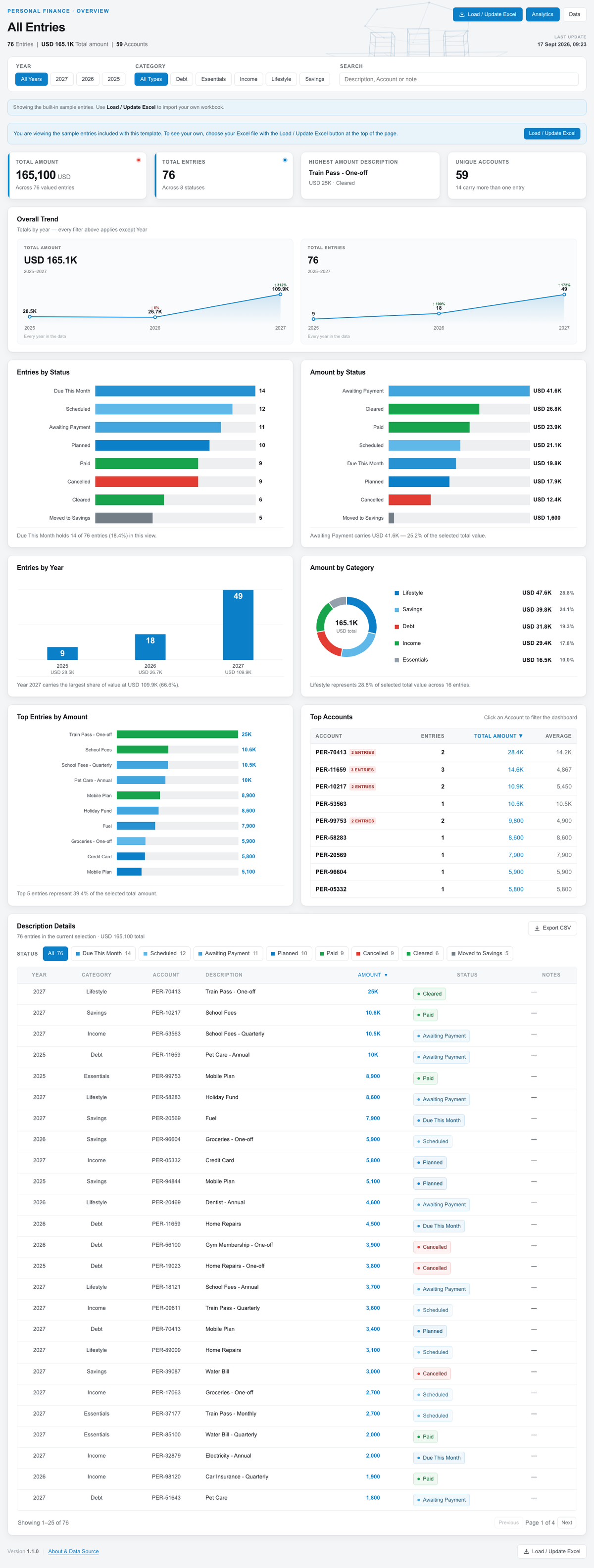
- KPI summary: total amount, number of entries, the highest single value and the count of unique account.
- A “Money in Motion” view showing each stage with counts, value and share of the total.
- An All Entries view plus a separate view for every status in your data.
- Charts for Entries by status, Amount by status, Entries by Year, Amount by Category, top Entries, top Accounts and size bands.
- Note analysis that groups your comments into operational themes using built-in keyword rules.
- Filters for Year and Category, a search box, and click-through filtering from the charts.
- Sortable, paginated table with a detail panel for each row, including its Excel row number.
- CSV export of the visible table, plus print or save to PDF.
- A currency label setting, so amounts read in your own currency.
- Clear reporting of any cell it cannot read, naming the exact cell rather than guessing a number.
Your spreadsheet columns
- Year - the year the row belongs to
- Category - your own grouping, for example Essentials, Lifestyle, Savings
- Account - your own reference for the row
- Description - what the row is
- Amount - a number. Leave it empty if it is not known - empty is never counted as zero
- Status - one of the statuses below, or your own
- Notes - free text, optional
- Owner - optional
Capital letters and column order do not matter. Notes and Owner are optional. Extra columns are ignored.
Statuses it understands
- Planned
- Due This Month
- Awaiting Payment
- Scheduled
- Paid
- Cleared
- Moved to Savings
- Cancelled
You can type any other status. Those rows are not lost: they appear under “Other / New Status” and the dashboard tells you about them.
Requirements and compatibility
- This is a digital download. No physical item is shipped.
- You need Microsoft Excel, or another spreadsheet application that can save a standard .xlsx file, to edit the supplied data.
- Viewed in a current desktop browser: Chrome, Edge, Firefox, or Safari 16.4 or newer.
- Designed for desktop and laptop screens. It will open on a tablet or phone, but it is built for larger displays.
- No Power BI licence, subscription, hosted server or internet connection is required for normal use.
- Your data is updated by importing the workbook yourself. The dashboard does not sync automatically with a file on disk.
- Formulas are supported through the result Excel saves in the file. The dashboard reads that saved result and does not recalculate your spreadsheet, so press F9 and save in Excel before importing if you use formulas.
- Note themes are grouped using a fixed list of English keywords. This is not AI, and notes in other languages fall into the Other group.
- Tested with workbooks of up to 20,000 rows.
Specifications
Get all essential details in one place. From features and package contents to software compatibility and skill level required, this section gives you a clear overview so you know exactly what to expect before download.
Template Features
Software Compatibility
Skill Level Required
Beginner
FAQs
Please read our FAQs page to find out more.
Are the templates fully customizable?
Yes, all our templates are fully customizable. You can adjust the layout, data, and design elements to fit your specific needs. Our templates are designed to be flexible, allowing you to easily tailor them to your preferences.
Can I order a product in any language?
Yes, we provide products in any language. Simply select the "Dashboard language change" Service and once your order is placed, you will receive it within 48 hours.
What happens if I choose the wrong monitor screen size for my dashboard?
If you choose the wrong screen size, the dashboard may not display correctly on your monitor. Elements could appear too large, too small, or misaligned, affecting the readability and usability of the dashboard. We recommend selecting the appropriate screen size to ensure optimal viewing and performance.
Do I need specific skills to use the advanced Excel dashboard templates?
Our advanced Excel dashboards are easy to use, the only thing you need to know is how to work with PivotTables. With basic knowledge of PivotTables, you'll be able to customize and fully utilize these templates effortlessly. "Please check the skill level required"
All dashboards are 100% editable Excel files. Learn how to use them through our video tutorials, included datasets, and lifetime access program.